There’s all the time one individual you already know who opens Messages to ship a textual content, then swipes to shut the app proper after. They are saying they’re saving the iPhone battery life, however this isn’t true. Because it seems, the other is the case. You shouldn’t swipe to shut any of your apps, as a result of doing so can damage your iPhone battery life and even decelerate your cellphone.
In a lately up to date assist doc, Apple may be very clear about when it is best to shut an app: “You need to shut an app provided that it’s unresponsive.” The corporate offers an additional clarification: “If an app received’t reply or appears frozen, you’ll be able to shut it, then open it once more,” however in addition to that, there’s no cause to maintain closing apps to open them once more a couple of minutes later.
That is a part of an city legend that these apps preserve draining the battery within the background, however that is inaccurate. Apple’s iOS and chips are so good at managing background duties that it’s virtually like Cupertino freezes these apps however hundreds them proper the place you left them as soon as you’ll want to open an already-used utility.
However, when you open an app, shut it, after which open it once more, the iPhone should undergo this strategy of reloading the app from scratch, which consumes extra battery life in the long run. This is the reason, if you wish to save battery life, there are higher tricks to make the most of.
How do you maximize efficiency and save battery life in your iPhone?
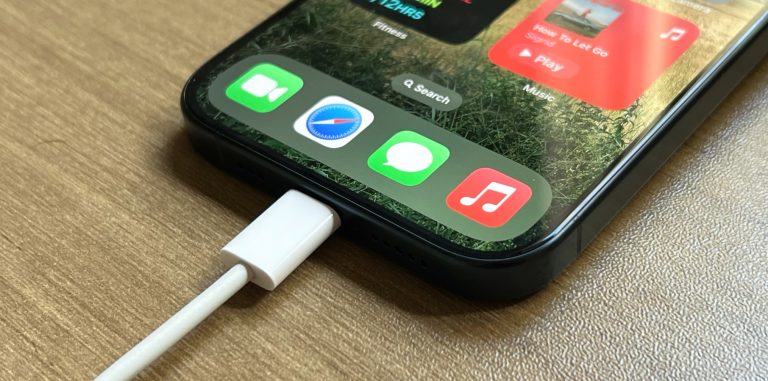
There are a number of ideas and tips to save lots of battery life in your iPhone, comparable to:
- Upda to the newest software program
- Dim your show by utilizing Auto Brightness on a regular basis
- Hold your iPhone on Wi-Fi on a regular basis, as poor mobile networks can drain your battery life
- Allow Low Energy Mode, as it can cease background work whereas turning off AirDrop, iCloud sync, and Continuity
Apple additionally empowers customers with battery utilization info, so customers can see which apps are consuming essentially the most battery and even how’s the bodily iPhone battery. That stated, these are another ideas:
Background Exercise. This means that the app used the battery whereas it was within the background — that’s, whilst you have been utilizing one other app.
- To enhance battery life, you’ll be able to flip off the function that permits apps to refresh within the background. Go to Settings > Basic > Background App Refresh and choose Wi-Fi, Wi-Fi & Mobile Knowledge, or Off to show off Background App Refresh completely.
Location and Background Location. This means that the app is utilizing location companies.
- You may optimize your battery life by turning off Location Providers for the app. Flip off in Settings > Privateness > Location Providers.
- In Location Providers, you’ll be able to see every app listed with its permission setting. Apps that lately used location companies have an indicator subsequent to the on/off change.
Dwelling & Lock Display. This means that the Dwelling display or Lock display was displayed in your gadget. For instance, the show was woke up by urgent the Dwelling button or by a notification.
- If an app continuously wakes your show with notifications, you’ll be able to flip off push notifications for the app in Settings > Notifications. Faucet the app and set Permit Notifications to Off.
BGR has loads of different ideas, together with the best way to quick cost your iPhone.