Folks actually like their iPhones. However I feel everybody can agree that all of us get means too many notifications. Notifications are all over the place. In the event you set up any app (ANY APP) in your cellphone, it will need to bombard you with notifications.
I don’t know why my digital camera app must ship me notifications, however it desires to. Virtually each app desires to ship you notifications as a result of builders know it would carry you again into their app. Over time, notifications have grow to be much less about offering useful nudges and extra about driving your engagement by way of the roof. That is good for the developer, however horrible for all of us.

After a decade of utilizing my iPhone and seeing the proliferation of notifications, I’ve determined to lastly get them below management. Personally, I don’t need lots of notifications. In actual fact, I don’t need MOST notifications. I don’t even desire a ring or vibrate after I get a textual content message. Solely issues cellphone calls, safety digital camera alerts, and drugs reminders are worthy of really interrupting me.
To that finish, I’ve discovered the best way to optimize my notifications so I’m solely interrupted by issues I must be interrupted by. The remaining are there when I’ve time to come back again to them. This has led to me feeling a lot much less pressured and assured that, if I do get a notification that truly alerts me, it’s one thing I want to concentrate to. As The Minimalists wish to say, “most emergencies aren’t.”
After tuning this new notification haven into existence, I’ve discovered fairly just a few tricks to get them below management that I feel you may profit from as nicely. Let’s get into it!
Flip your ringer off
If there’s one factor that’s certain to interrupt you from what you’re doing, particularly if you’re attempting to get into your stream like former Microsoft Floor head Panos Panay beloved to say, it’s having your ringer turned on. That is the very first thing I did to get my notifications (interruptions) below management.
There’s nothing like attempting to have a dialog with a pal or discovering your self in some deep work and having the ringer go off in your iPhone or Apple Watch, solely to seek out out it’s a notification about 20% off at Wendy’s by way of DoorDash as we speak. Whereas I’ll discuss turning vibrations off for many issues, I feel the ringer is an much more sinister interrupter.

For the love of all that’s good on this world, please flip your ringer off — particularly in case you’re already rocking an Apple Watch anyway. For something pressing, a vibration in your wrist is all you have to be sure to don’t miss something. We don’t have to stay on this planet of unusual ringtones going off in public anymore.
Flip off notifications for many apps
Let’s face it — we don’t truly have to have notifications turned on for many apps. Do you really want to learn about new apps accessible on the App Retailer? Or if somebody appreciated a put up on social media? Most of these items are effective to seek out out while you purposely open the app, to not interrupt you while you’re attempting to do different issues.
This was the second factor I did to get my notifications below management. After reviewing the Notifications part of the Settings app, I found out that I may flip off notifications utterly for a ton of apps. Listed here are some examples:
- App Retailer (these are principally simply adverts)
- Recreation Heart (I don’t sport on my iPhone)
- Information (I solely need to learn information as soon as a day within the morning)
- Starbucks (additionally simply principally adverts)
- Reddit (be gone, social media notifications)
Everyone seems to be totally different, and a few of you’ll absolutely have a cause to maintain one of many above turned on. However I wager that, in case you took a while to assessment these your self, you’d discover some or lots of alternatives to show notifications off utterly for some apps.
That is the carpet bomb method that may reduce out a ton of noise that you’re assured you don’t want.
Customise notifications in your apps
For apps that you simply want no less than some notifications, it doesn’t imply that you simply want ALL of the notifications. Virtually each app in your cellphone has a settings part that permits you to customise the notifications that you simply do (or don’t obtain) from that specific app.
For instance, my banking app was sending me notifications for means an excessive amount of. Upcoming due date on a bank card? I’ve computerized invoice pay on, so it’s going to receives a commission regardless — why do I want the notification?
I went by way of all of my apps that I left notifications on for and customised what notifications I used to be truly okay receiving from them. This removed in all probability 80% of the notifications that had been despatched as a result of, in fact, ALL of them are turned on by default.
Don’t let an app spam you for every part. You possibly can inform it what’s and isn’t okay to inform you about.
Ship most notifications to the Abstract
Now that you simply’ve turned off notifications utterly for some apps and gotten rid of most notifications for the apps you truly do enable notifications from, it’s time to determine what to do with these notifications.
Do you truly have to get alerted instantly about these? Or would you favor to assessment a few of them in the beginning or the tip of the day? That is the place the iPhone’s Scheduled Abstract characteristic is nice. It lives below the Notification part of the Settings app as nicely and allows you to determine whether or not you need to assessment notifications and what apps ought to ship all notifications to the Abstract.
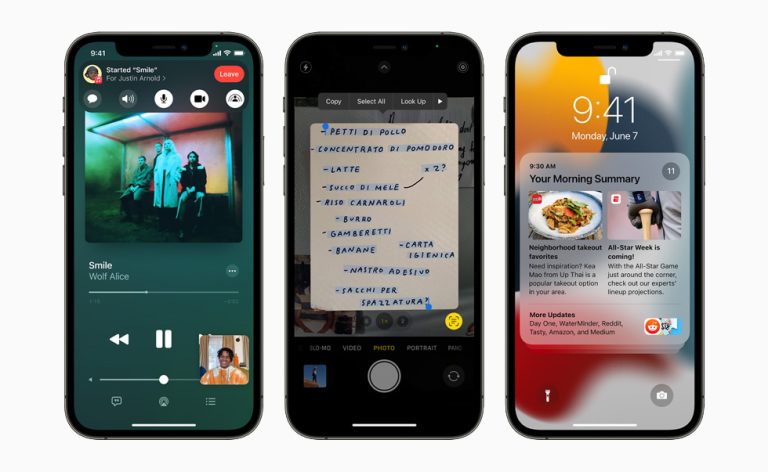
Let’s say you continue to need Information notifications however solely need to assessment them at 9:00 AM on daily basis. Simply go to Settings > Notifications > Scheduled Abstract, and activate Information below the Apps in Abstract part. At 9:00 AM on daily basis, you’ll get to assessment your Information notification, however you received’t get notifications each single time a brand new one comes by way of anymore. Good.
For the entire remaining apps which are notifying you that you simply don’t want to take a look at instantly, sending a bit of those to the Abstract removes much more pointless interruptions all through the day. I take advantage of this for a variety of apps together with my banking apps and the Mail app for my private electronic mail.
Flip off vibrations for many apps
Now that you simply’ve turned off your ringer, turned off notifications for many apps, and despatched a number of the remaining apps to the Abstract, what about what’s left? On the very least, you’re in all probability nonetheless getting notifications by way of vibrations in your cellphone or watch from the Cellphone and Messages app.
For no matter is left, think about turning off vibrations for a few of these apps. For instance, I turned off vibrations for the Messages app. Whereas I truly need to be interrupted if a cellphone name comes by way of, I don’t want my Apple Watch to vibrate each time somebody sends me a textual content message.
Throughout the work day or after I’m spending time with individuals, I need to be centered and current. I don’t want fixed buzzes from my cellphone or watch from these messages. If it was an emergency, somebody would name me! So, I’ve personally turned vibrations off for many apps at this level. Among the apps I’ve stored embrace the Cellphone, Residence, and Well being app since all of those may point out one thing pressing that I want to take a look at instantly.
Check out your remaining notifications. Which of them do you have to take a look at as quickly as they arrive by way of, and which of them may you get to while you end one thing and test your cellphone? For something within the latter, flip these vibrations off.
Show notifications as a Depend
This one is totally underrated. Have you ever ever walked by and glanced at your cellphone and, regardless that you didn’t imply to, seen the stack of notifications in your Lock Display screen? You are feeling compelled to select it up as a result of, man, take a look at all of these notifications piling up!
That is the place selecting the way you show notifications in your iPhone is available in. Beneath the Notification settings, you may select to show notifications in your Lock Display screen as Depend, Stack, or Checklist. Checklist is complete chaos with no grouping in any respect — that is how we lived for years. Finally, Apple created (or stole from Android) the Stack, which no less than grouped notifications by apps.

I’d argue even the Stack is just too distracting because it nonetheless takes up area in your Lock Display screen to point out you all these notifications simply ready to be found inside the stack. As an alternative, I select the Depend, which shows a easy counter on the backside of the Lock Display screen to let you know the way many notifications you may have.
After making this alteration, I’ll by no means return to the Stack or the Checklist. It is a far more easy and calming setup.
Flip off the notification indicator in your Apple Watch
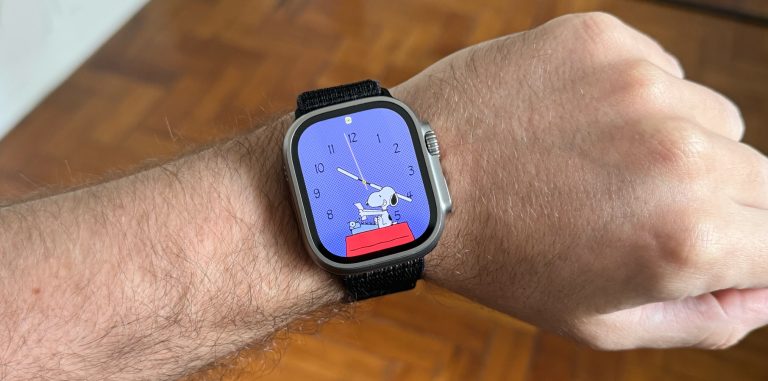
The very last thing I did to take management of my notifications was to show off the notification indicator on my Apple Watch. Have you ever ever seen the little purple dot on the high of your Apple Watch, all the time alerting you (IN A VERY RED ALERT) that you’ve got notifications?
I went forward and turned this off below the Notification settings within the Apple Watch app. If I can look at my iPhone to see if I’ve any notifications and get alerted by way of a vibration on my look ahead to any I deem pressing, what do I want two notification indicators for?
Eliminating that blaring purple indicator has made my Watch Face far more pleasing to take a look at and I can’t ever see myself turning it on once more.
What if I miss one thing?
However, what if I miss a notification that’s truly pressing? That’s the great thing about this method. You possibly can all the time change issues as you go and add alerts again in for belongings you need to. In fact, you may also take time and slowly reduce issues out in case you’re nervous about it.
After implementing the above for the previous couple of months, I can say that I haven’t discovered any points with not getting a notification on the proper time. Apple has supplied so many options and choices which you can actually customise issues in a means that works for you — it simply takes some effort to get your system in place.
I’ve been an iPhone person for over a decade now and eventually really feel like I’ve gotten management over my notifications. I hope the above helps you do the identical!